
Ten topics that cover the home computer, the internet, and AI
This page is a map of everything Bellwood Computer Guide currently covers. Each section below explains one part of using a computer in plain language, from the physical parts on your desk to what to do when the Wi-Fi drops, and finally how AI assistants can help with all of it.
Learning a computer later in life is less about memorizing buttons and more about building a mental picture of how the pieces fit together. Once that picture is in place, new situations stop feeling like emergencies and start feeling like small puzzles you already know how to approach. The ten topics below build on each other loosely, starting with the physical machine and ending with the habits that keep it running smoothly, but you are welcome to jump straight to whichever one matches your question today.
Each topic is written as a self-contained explanation, so you never have to read the whole page in order. If your Wi-Fi just dropped in the middle of writing an email, jump straight to the Wi-Fi section, solve the immediate problem, and come back to the rest another day. Over time, most readers find they naturally work through all ten, simply because one topic tends to raise a small question that the next topic happens to answer.
Getting comfortable with the machine itself
Three foundations before anything else: knowing what the parts are called, trusting your hands on the mouse and keyboard, and understanding where your files actually go.
Parts of a computer
A desktop computer is really a small group of parts working together: a tower or all-in-one case holding the processor and memory, a monitor that displays the picture, a keyboard and mouse for giving instructions, and cables or wireless signals connecting them all. A laptop folds most of these into one case, with the keyboard and a trackpad built in below the screen. Knowing the correct, plain name for each piece makes it far easier to describe a problem to someone else, follow written instructions, or find the right cable when something needs plugging back in. We also cover the handful of buttons and ports you will actually use day to day, such as the power button, the volume control, and the slot for a USB flash drive, without wading into technical specifications that rarely matter for everyday use.
Files and folders
Every photo, letter, or spreadsheet you save becomes a file, and files are organized inside folders much like paper documents are organized inside labeled folders in a filing cabinet. This section builds a simple, consistent map of where things live: a Documents folder for letters and forms, a Pictures folder for photos, and a Downloads folder that quietly fills up with anything you save from the internet. We explain how to name a file so you can find it again later, how the search box built into your file list can locate a document even if you forget exactly where you put it, and why regularly checking the Downloads folder prevents the frustrating feeling that everything has "disappeared" into the computer.
Building steady, confident hand movement

Mouse and keyboard confidence
Clicking, double-clicking, dragging, and scrolling each feel awkward at first and become automatic with a little repetition. This section walks through each motion slowly, explains what a single click does compared with a double-click, and offers simple practice exercises using nothing more than the desktop that came with your computer. We also cover typing basics, including how to correct a mistake, how the Shift and Caps Lock keys differ, and why it is impossible to damage a computer just by pressing the wrong key.

Using a web browser
A browser is simply the program that opens web pages, whether that program is called Chrome, Edge, Firefox, or Safari. This guide explains what the address bar at the top does, what a tab is and why opening several at once is useful rather than confusing, and how to save a page you want to return to using a bookmark. We also cover the back button, which is often the fastest way out of a page that feels unfamiliar or unwanted.
Wi-Fi and what to do when it drops
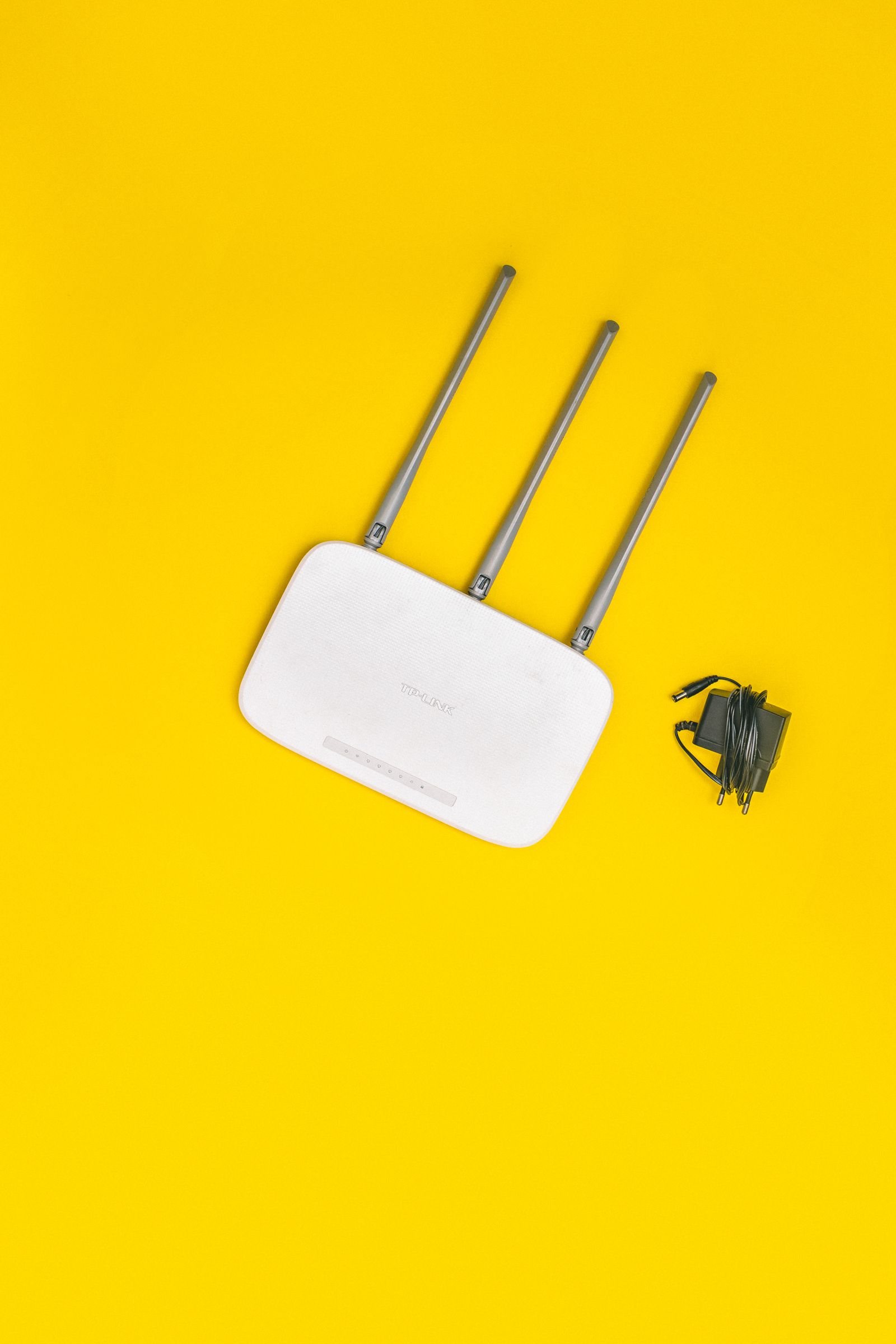
Wi-Fi is the wireless signal that connects your computer to the internet through a small box called a router, usually sitting near your television or phone jack. This section explains what those blinking lights mean, the short list of steps to try when a page will not load, such as checking whether other devices are also affected and restarting the router, and how to tell the difference between a Wi-Fi problem and a problem with a single website.
Search, email, and communicating online
Search that actually finds things
Typing a question into a search box, such as a Google or Bing search bar, is one of the most useful skills a new computer user can build. This section explains the difference between a search box and the browser's address bar, how to phrase a question in plain words rather than guessing at special search codes, and how to judge which of the listed results looks trustworthy before clicking. We also explain how to recognize a paid advertisement sitting at the top of a results page, which is clearly labeled but easy to overlook if you do not know to look for it.
Email basics
Email lets you send a written message to anyone else with an email address, often instantly and always for free. This section covers reading a new message, writing and sending a reply, and attaching a photo to a message you are sending to family. It also spends real time on a serious topic: recognizing a suspicious email before you click a link or reply, including warning signs such as urgent language, requests for passwords, or an unfamiliar sender pretending to be someone you know.
Printing, scanning, and staying up to date

Printing and scanning
Printing takes something on your screen and turns it into paper, while scanning does the opposite, turning a paper document into a file on your computer. This section explains how to choose a printer from the print menu, why a document sometimes will not print, such as low paper or a printer that is powered off, and the basics of scanning a document using either a dedicated scanner or a phone camera app.

Keeping the machine updated
Software updates fix problems and close security gaps, which is why computers periodically ask permission to restart and install one. This section explains what an update actually changes, why it is safe to allow official updates from your computer's own settings, and how to recognize a fake "update" pop-up designed to trick you into installing something unwanted.

Putting it all together
Once the individual pieces feel familiar, most everyday tasks turn out to be small combinations of the topics above: searching for a recipe, emailing a photo to a grandchild, or printing a form for an appointment. This closing section walks through a few complete, worked examples from start to finish.
AI assistants: a friendly helper for everything above
Artificial intelligence, usually shortened to AI, is software that can understand questions written in everyday language and answer them in full sentences. You may have heard names such as ChatGPT, Claude, Gemini, or Microsoft Copilot. This topic explains what they are good at, where they fall short, and how to use them safely.
Getting started with an AI assistant
Most assistants open in a web browser like any other website, or come built into your phone or computer. You type a question into a box at the bottom of the screen and press Enter. This section shows how to start a conversation, how to ask a follow-up question such as "can you explain that more simply?", and how to start fresh when the answers drift off topic. Many assistants also accept spoken questions, which is a gentle option for anyone who finds typing tiring.
Using AI to learn the other nine topics
AI works well as a personal tutor for the rest of this guide. You can ask it to explain what a browser tab is, describe the steps to attach a photo to an email, or talk you through restarting a router, one step at a time. If a step does not match your screen, simply tell the assistant what you see, and it will adjust its directions to your computer.
Everyday helpful uses
Beyond computer questions, assistants can help you write a thank-you note, summarize a long document from your bank or doctor in simpler words, plan a grocery list, translate a message, or suggest a recipe for what is already in the fridge. Think of it as a patient, knowledgeable neighbour who is available at any hour and never minds being asked twice.
Staying safe and sensible with AI
AI assistants can occasionally give answers that sound sure but are wrong, so treat important advice about health, money, or legal matters as a starting point and confirm it with a professional. Never type passwords, card numbers, or ID numbers into a chat. Also be aware that scammers now use AI to write convincing emails and even imitate voices on the phone: if a "relative" calls urgently asking for money, hang up and call them back on a number you already know.
Informational only, by design
We are explicit about this because scams targeting older computer users often begin with someone posing as a helpful support service.
- We will never ask for payment, a gift card, or your bank details for any reason.
- We will never request remote access to your computer or ask you to install remote-control software.
- We will never call or email you first. All contact starts with you, through our Contact page.
- We do not recommend or endorse a specific brand of computer, printer, or router for purchase.
- We do not sell or promote any paid AI product. AI tools are mentioned only as examples so you can recognize them.